Categories: AI Video Workflow, Creator Strategy, Production Process
Tags: seeddance, seedance 2.0, ai video workflow, image to video ai, creator toolkit
Introduction
Generate video from image AI workflows are useful because they turn one strong frame into a short, usable piece of motion content. Instead of planning a full shoot, creators can start with a photo, define what should move, and iterate quickly until the clip feels intentional.
The quality of the result usually comes down to two decisions: the source image and the prompt. If the image is clear and the motion brief is specific, AI can produce a believable clip for ads, product demos, social loops, and visual storytelling without the usual production overhead.
1) Why Image-to-Video AI Matters
Modern image-to-video models do more than add random movement. They analyze the subject, background, depth, textures, and lighting in a still image, then predict how motion should unfold frame by frame. That is why a single photo can become a subtle product shot, an animated portrait, or a short cinematic scene.
For marketers, that means faster creative testing. For creators, it means ideas move from concept art to motion much faster. The real advantage is not novelty. It is the ability to explore multiple directions without rebuilding the whole asset from scratch.
2) How to Choose the Right Tool
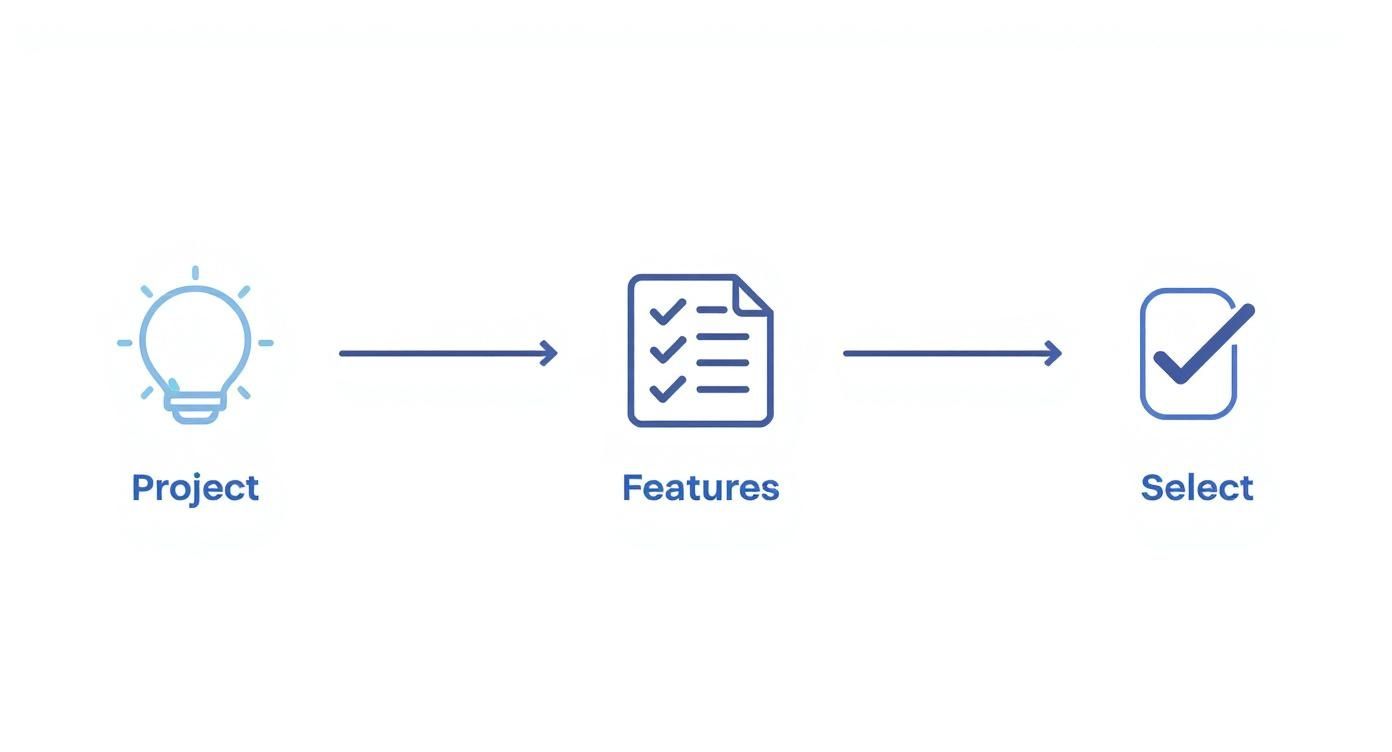
Not every AI model is optimized for the same outcome. Some systems are better at restrained, realistic motion. Others are more useful when you want aggressive stylization, abstract movement, or quick iteration. Before committing to one tool, compare a few fundamentals:
- Motion coherence: does the subject stay stable from frame to frame?
- Prompt responsiveness: does the model actually follow your instruction?
- Camera control: can you guide pan, zoom, tilt, or push-in behavior?
- Output formats: can you generate the aspect ratio your channel needs?
- Iteration speed: can you test enough variants to make the workflow practical?
The fastest way to evaluate a tool is to run the same image and the same prompt through two or three systems. Once you find a strong first pass, you can tighten the workflow with Image to Video for generation and Video to Video for refinement.
3) Start With the Right Image
The best outputs usually begin with a high-resolution image that has one obvious subject, readable lighting, and clear separation between foreground and background. When the frame is simple to understand, the model can allocate its motion more intelligently.
Crowded compositions, muddy contrast, or low-resolution inputs force the AI to guess too much. That is when you start seeing unstable edges, drifting faces, or motion in places that should stay still. A good source image makes every later step easier.
Before you generate, check three basics:
- Is the main subject immediately clear?
- Is there enough texture and lighting detail for the model to read?
- Does the composition fit the platform ratio you want to publish?
4) Prompt for Motion, Mood, and Camera
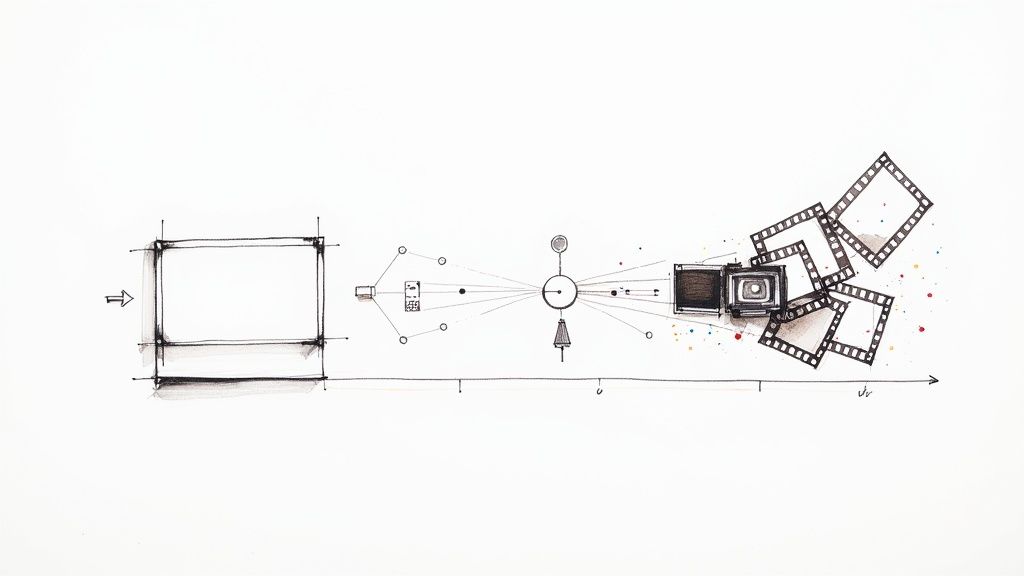
If the image is the foundation, the prompt is the direction layer. A weak instruction like "animate the lake" leaves too much room for guesswork. A stronger prompt defines four things in one sentence: the subject, the motion, the atmosphere, and the camera.
For example, instead of writing "make the water move," try: gentle ripples spread across the lake at sunrise, soft reflections shimmer on the surface, slow pan to the right. That gives the model a specific type of movement, a visual tone, and a camera instruction at the same time.
A simple formula works well:
[Subject] + [Motion] + [Atmosphere] + [Camera Direction]
When you want better consistency, keep each prompt focused on one primary action. It is usually more effective to generate three narrow variants than one overloaded prompt with five competing motions. If you still need to block out a scene before choosing the final still, Text to Video can be a useful first ideation step.
5) Use Settings and Controls to Improve Output
After the prompt, settings become the quality multiplier. Motion intensity controls how subtle or dramatic the movement should feel. Lower settings usually work better for portraits, products, and elegant loops. Higher settings can help action scenes, weather effects, or stylized shots, but they also increase the risk of artifacts.
Aspect ratio matters just as much. A vertical clip is better for Shorts, Reels, and TikTok. A horizontal clip is still the standard for YouTube, site headers, and presentation visuals. Choosing the right ratio at the start is much cleaner than cropping after generation.
For more control, advanced tools also let you:
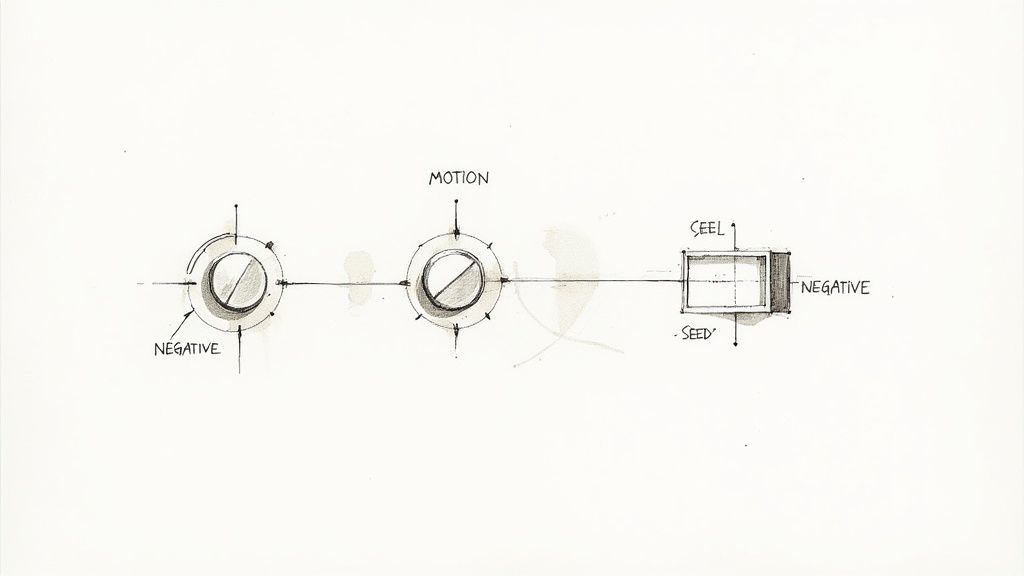
- Use negative prompts to reduce blur, flicker, text artifacts, or distortion
- Reuse seed values when you want a repeatable base generation
- Direct camera behavior with prompts like slow zoom in, tilt up, or tracking shot
Short clips usually remain the most reliable. When the goal is a strong hook, a clean three to eight second sequence often performs better than a longer, less stable generation.
6) Real-World Ways to Use Image-to-Video AI
This workflow is already practical for production teams, solo creators, and marketers. A product team can animate a hero shot for a landing page. A social team can turn still assets into ad variants. An artist can transform an illustration into a loop that feels alive without rebuilding the scene in a traditional animation suite.
One useful operating model is:
- Pick a high-quality still image with one clear motion idea.
- Generate first-pass motion in Image to Video.
- Refine the strongest take in Video to Video.
- Add or plan sound support with Video to Audio.
- Publish a small set of variants and compare retention, CTR, or watch-through.
This keeps the workflow grounded in iteration rather than one-shot perfection.
7) Copyright and Responsible Use
The legal side of AI video is still evolving, so the safest rule is simple: only animate images you own or have clear rights to use. If the source image is licensed, confirm that the license covers derivative work. If the generator has commercial terms, read them before you use the output in paid campaigns or client work.
The same logic applies to brand safety. Use AI to accelerate production, but keep human review in the loop before publishing. Fast iteration is valuable only if the final clip still matches the product, message, and audience context.
Conclusion
To generate video from image AI well, you do not need a complicated pipeline. You need one strong image, one believable motion idea, and a workflow that makes iteration cheap. That combination is what turns a static frame into a useful marketing asset or creative shot.
Next Step
Start with a single still in Seeddance Image to Video, keep the prompt focused, and refine only the versions that already look promising.
FAQs
1) What kind of image works best for image-to-video AI?
High-resolution images with a clear subject, clean lighting, and readable depth usually produce the most stable motion.
2) How long should AI-generated clips be?
Short clips are generally easier to keep coherent. In practice, a three to eight second sequence is often enough for ads, loops, and content hooks.
3) How do I write a better prompt?
Describe the subject, the motion, the atmosphere, and the camera direction. Keep the prompt focused on one main action instead of stacking too many instructions.
4) Can I control camera movement?
Yes. Many image-to-video tools respond to prompts such as slow pan, zoom in, tilt up, or tracking shot, although the precision varies by model.
5) Who owns the output?
That depends on the source image rights and the generator's terms. Use assets you are allowed to animate, and check the platform policy before commercial use.