Categories: AI Video Workflow, Creator Strategy, Production Process
Tags: seeddance, seedance 2.0, ai video workflow, content strategy, creator toolkit
Introduction
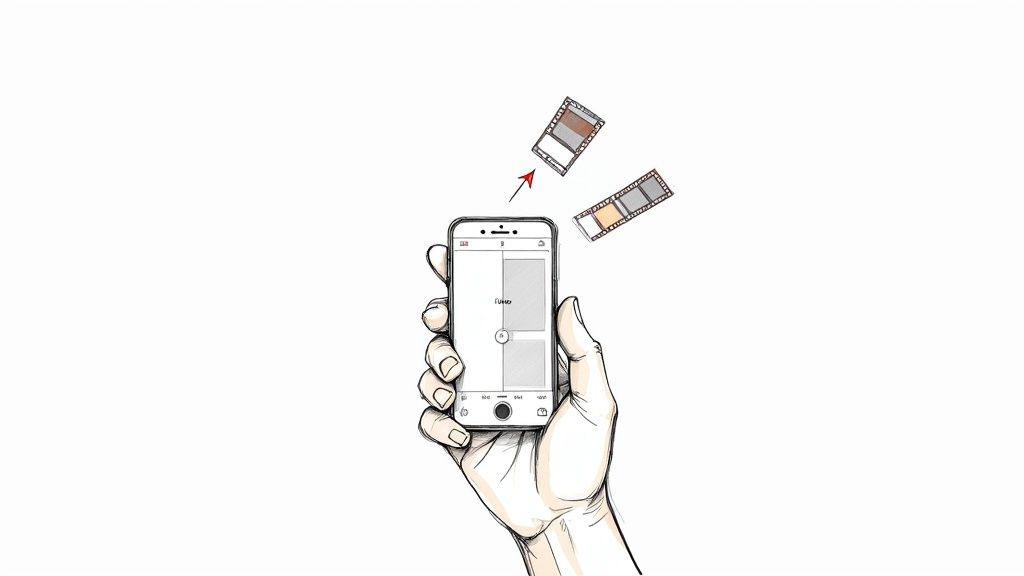
Transforming Live Photos into videos isn't just a technical trick; it's a creative upgrade. This guide will show you how to turn your static iPhone gallery into a dynamic library of shareable clips, capturing the true essence of your moments. This trend aligns perfectly with the boom in short-form content, a phenomenon that gained traction after Apple introduced the Live Photo feature in 2015, capturing 1.5 seconds of video before and after you press the shutter.
Why Bother Converting a Live Photo?
Converting Live Photos allows you to transform static memories into dynamic, shareable content. This creative upgrade lets you better capture the real feeling of a moment, making your gallery more engaging and suitable for today's short-form video culture.
Riding the Short-Form Video Wave
The urge to turn Live Photos into videos fits perfectly with the boom in short-form content. This whole trend started gaining steam after Apple rolled out the feature back in 2015, capturing 1.5 seconds of video before and after you press the shutter.
Going Straight to Video: The "Save as Video" Method
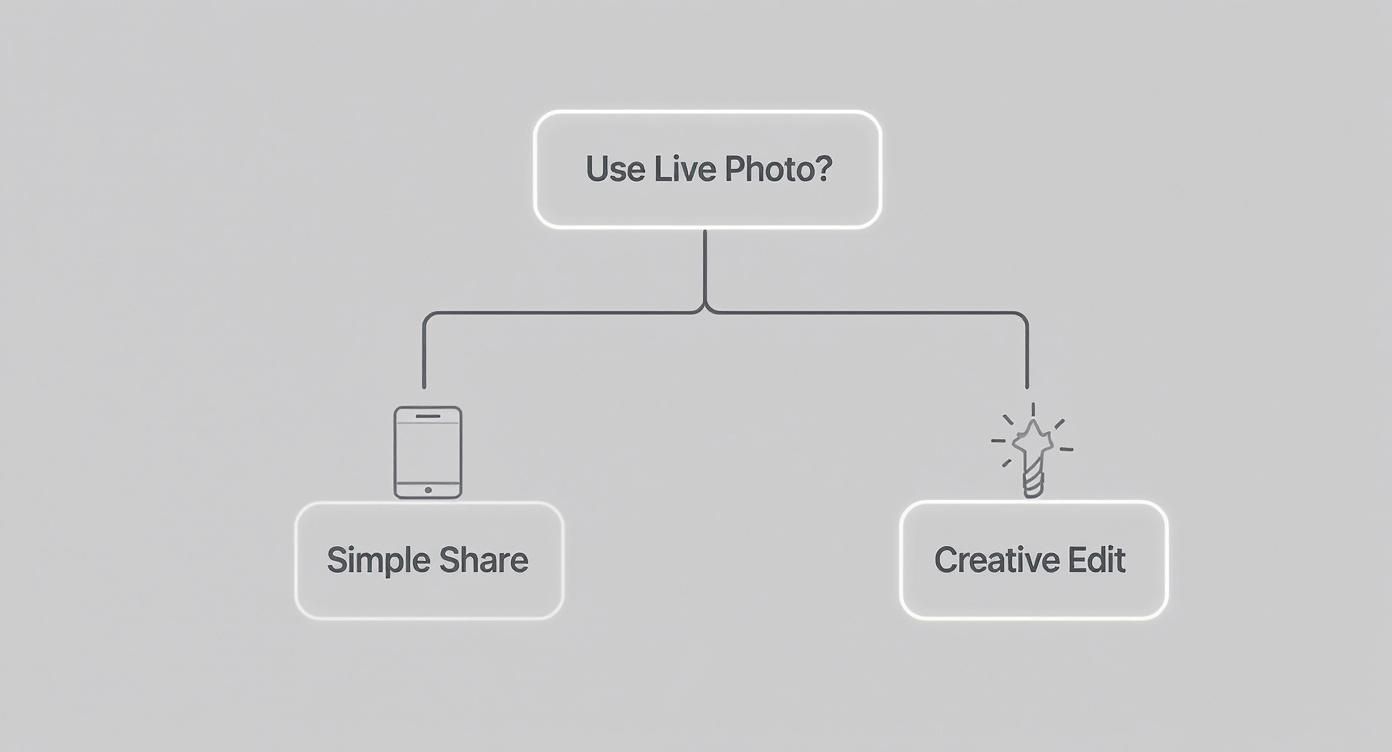
This is the most direct route for a clean conversion and a hidden gem for many iPhone users. To make it even clearer, here's a quick rundown of this built-in option and when to use it.
Adding a Creative Twist with Loop and Bounce Effects
Sometimes a straight conversion isn't enough. For something more eye-catching, your iPhone's built-in effects like Loop and Bounce can turn a simple moment into a fun, looping clip perfect for social media stories.
Comparing Native iOS Conversion Methods
Your iPhone’s built-in tools are fantastic for quick conversions, but they barely scratch the surface of what’s possible. To make it even clearer, here's a quick rundown of the built-in options and when to use them.
Level Up Your Edits with Third-Party Apps
If you want to take the director's seat and fine-tune the look and feel of your clips, third-party apps are your best bet. They offer more control and advanced features beyond what native tools provide.
Apps Made for the Job
Some apps are designed with one specific mission in mind: turning a Live Photo into a video with all the bells and whistles. A crowd favorite for this is intoLive. It’s powerful yet incredibly straightforward, making it a great place to start.
Weaving Live Photos into Bigger Projects
What if that little Live Photo moment is just one piece of a larger puzzle? Powerhouse video editors like CapCut or InShot treat your Live Photos just like any other video clip you'd drop into a project, allowing you to integrate them into more extensive video creations.
Breathe New Life Into Your Clips with AI Animation
So, you've successfully turned your Live Photos into standard video clips. That's a great start, but what if you could take it a step further? This is where AI animation opens up a whole new world of creative possibility. The workflow is surprisingly simple: you just take the video you already made from your Live Photo and use that as the foundation for AI enhancement.
Tips for Creating High-Quality Videos
To get the most out of AI animation and ensure high-quality results, a few simple guidelines go a long way. Always start with the highest quality source video you can. When you save your Live Photo as a video, make sure you choose the highest resolution available on your iPhone.
Mastering the Art of the Trim
Getting your Live Photo converted into a video file is just the first step. Now, the real work begins: turning that short, raw clip into something that feels intentional and looks polished. This involves mastering the art of trimming and refining your video.
Polish and Perfect Your Video
After converting and trimming, the next step is to polish and perfect your video. This can involve adding effects, adjusting colors, and ensuring smooth transitions to create a professional-looking final product.
Questions That Pop Up When Converting Live Photos
This section addresses common queries and provides practical answers to help you navigate the process of converting Live Photos into videos smoothly.
Recommended Settings and Use Cases
Understanding the best settings and ideal use cases for your converted Live Photos can significantly enhance your content. This includes optimizing for social media, personal archives, or creative projects.
From Simple Clip to Animated Story
This isn't just a technical trick; it's a creative upgrade. You're transforming a static gallery into a library of dynamic, shareable clips that better capture the real feeling of a moment.
Conclusion
The most reliable way to scale content output is to standardize how each piece is produced. Keep the structure stable, iterate by section, and scale only what proves performance.
Next Step
Explore Seeddance workflow templates: https://seeddance.app/
FAQs
1) Can this workflow work for a solo creator? Yes. Start with a small weekly scope and reuse the same production blocks.
2) How many variants should I test per post? 2 to 4 focused variants are usually enough to identify clear winners.
3) Should I prioritize trends or consistency? Use trends for reach, but keep a consistent format system for long-term brand memory.
Media References
- https://cdn.seeddance.app/blog/turn-live-photo-into-video/20260311223632-elznc3v5.jpg
- https://cdn.seeddance.app/blog/turn-live-photo-into-video/20260311223633-7v3zzao1.jpg
- https://cdn.seeddance.app/blog/turn-live-photo-into-video/20260311223634-0k5dtlfj.jpg
- https://cdn.seeddance.app/blog/turn-live-photo-into-video/20260311223635-2yx6x715.jpg